Repository Setup
Now that your accounts are configured, let's set up the project repositories. We'll clone them to your local machine for development.
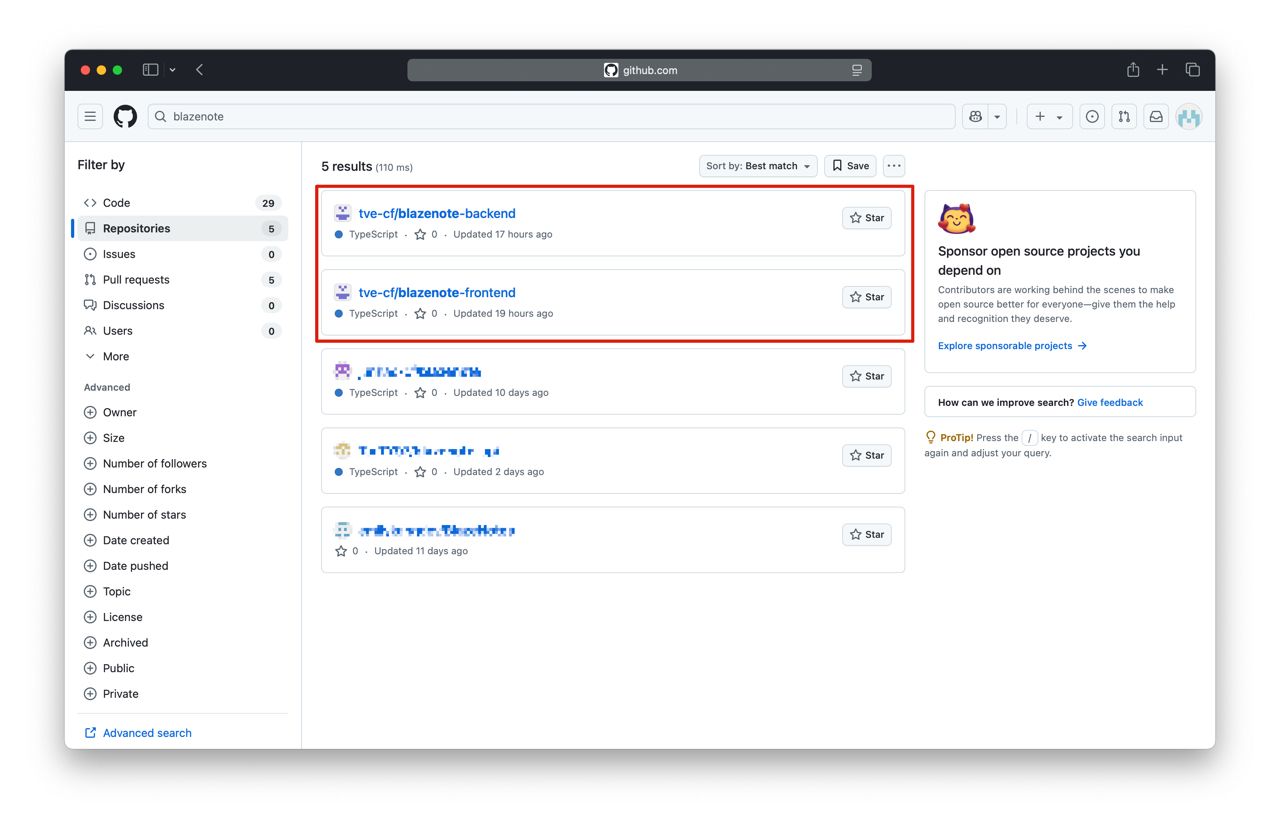
Understanding the Project Structure
What are we building? We're creating a note-taking application with two separate repositories:
- Frontend (
blazenote-frontend): A React web application for the user interface - Backend (
blazenote-backend): Serverless API functions for data management
Why two repositories? Separating frontend and backend allows for:
- Independent deployment and scaling
- Clear separation of concerns
- Different development workflows
- Better team collaboration
Step 1: Clone Repositories to Your Local Machine
What is cloning? Cloning downloads a copy of your GitHub repository to your local computer where you can edit the code.
Choose Your Workspace Directory
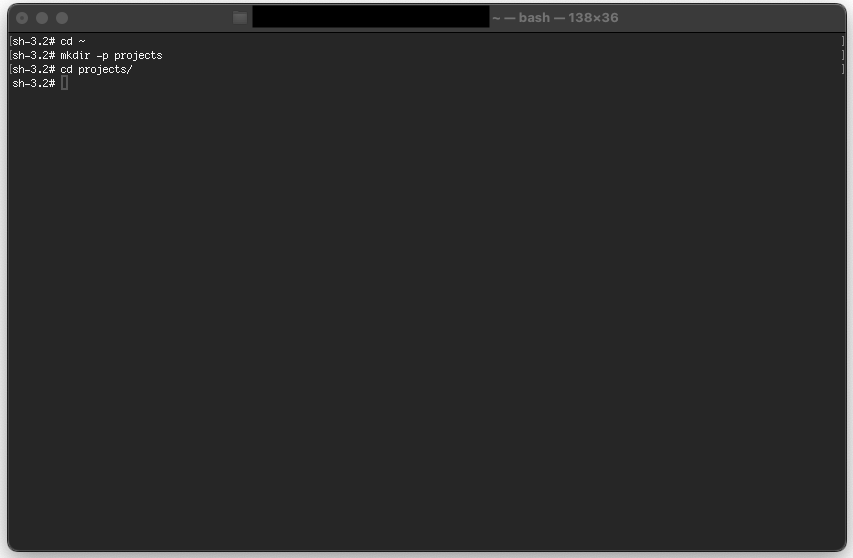
First, decide where you want to store your projects. We recommend creating a dedicated folder:
# Navigate to your home directory
cd ~

# Create a projects folder (if it doesn't exist)
mkdir -p projects

# Navigate into the projects folder
cd projects
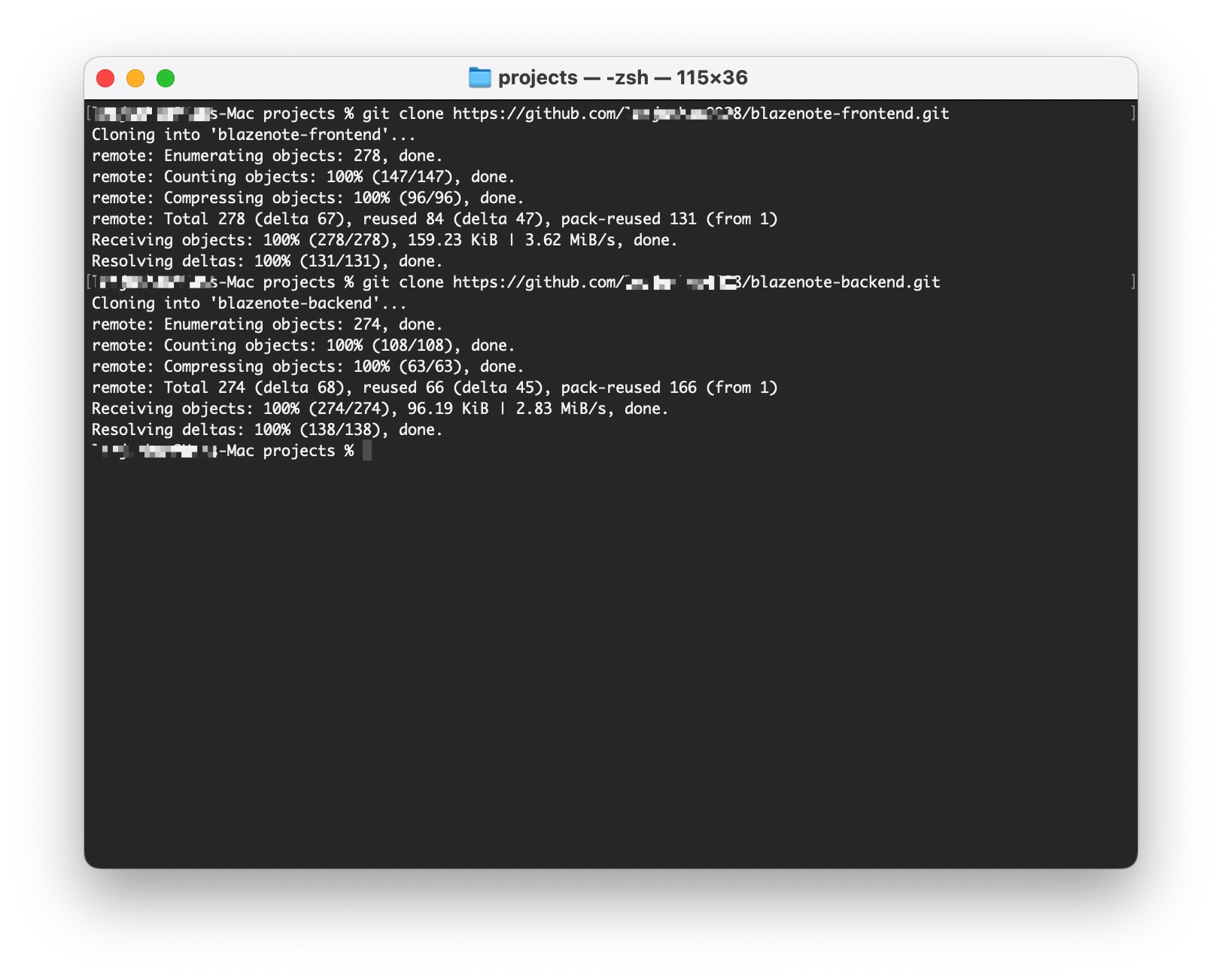
Clone the Frontend Repository
git clone https://github.com/tve-cf/blazenote-frontend.git
Clone the Backend Repository
git clone https://github.com/tve-cf/blazenote-backend.git
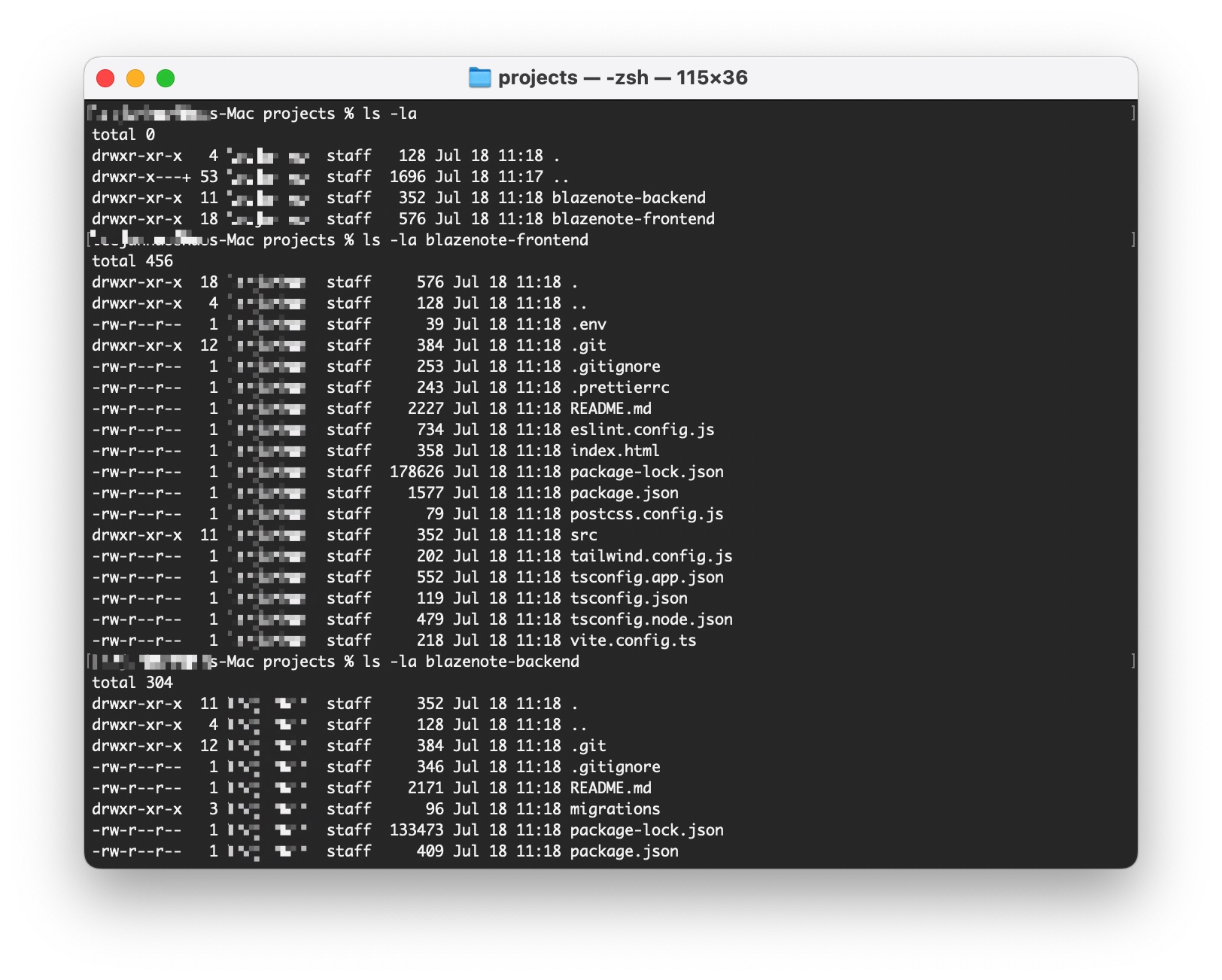
Verify Cloning Success
ls -la
You should see two directories:
blazenote-frontend/blazenote-backend/
Check repository contents:
# Check frontend structure
ls -la blazenote-frontend/

# Check backend structure
ls -la blazenote-backend/
Step 2: Verify Your Branches
Why verify branches? The main branch contains the complete, finished application, while the starter branch contains the starting code for this workshop.
Verify Frontend Branch
Navigate to the frontend project:
cd blazenote-frontend
Check current branch:
git branch
You should see you're on the starter branch (indicated by an asterisk *). If you see main instead, proceed to the next step to switch branches.
Note: Since starter is now the default branch, you should already be on the correct branch after cloning. The following step is only needed if you find yourself on the main branch.
Switch to starter branch (if needed):
git checkout starter
Verify the branch:
git branch
Verify Backend Branch
Navigate to the backend project:
cd ../blazenote-backend
Check current branch:
git branch
You should see you're on the starter branch (indicated by an asterisk *). If you see main instead, proceed to the next step to switch branches.
Note: Since starter is now the default branch, you should already be on the correct branch after cloning. The following step is only needed if you find yourself on the main branch.
Switch to starter branch (if needed):
git checkout starter
Verify the branch:
git branch
You should see * starter indicating you're on the correct branch. If you see main instead, the command above will switch you to the correct branch.
Step 3: Install Dependencies
Now that we have the repositories cloned and on the correct branches, let's install the project dependencies.
Install Frontend Dependencies
Navigate to the frontend project:
cd ~/projects/blazenote-frontend
Install dependencies:
npm install
This will install all the React dependencies, build tools, and other packages needed for the frontend application.
Install Backend Dependencies
Navigate to the backend project:
cd ~/projects/blazenote-backend
Install dependencies:
npm install
This will install all the Cloudflare Workers dependencies, database tools, and other packages needed for the backend API.
Verify Installation
Check frontend dependencies:
cd ~/projects/blazenote-frontend
ls -la node_modules/
# Should show many directories with installed packages
Check backend dependencies:
cd ~/projects/blazenote-backend
ls -la node_modules/
# Should show many directories with installed packages
What are dependencies? Dependencies are external packages and libraries that your project needs to function. The package.json file lists all required dependencies, and npm install downloads and installs them locally.
Need Help?
Repository Issues:
- Check internet connection for cloning
- Verify you have access to the repositories
Branch Issues:
- Use
git branch -ato see all available branches - The source repository includes both
mainandstarterbranches, butstarteris now the default
Permission Issues:
- Set up SSH keys for easier authentication
- Use personal access tokens if needed
- Check the Troubleshooting Guide
Great job! Your code repositories are ready for development! 🎯